Import Toolbox5 projects in Toolbox 8
Toolbox 5 projects can be imported to Toolbox 8.1. Hardware restrictions and configuration adaptations for old projects might be possible.
If your system is running well and no new features are required, an upgrade to Toolbox8 is not required. Only upgrade to Toolbox 8 if you carefully checked existing hardware for compatibility.
With Firmware version 8.x or higher, the hardware modules of the series RM4200D (DSP Frame and control modules), 52/XR (MADI Router), 52/MB (Stagebox) are not supported. Therefore these devices are not supported in the TB8 anymore.
Mixed TB5 projects including these devices and current DSP cores can be imported. While the DSP cores (52/XC, 52/XD, 52/XS) will be imported, the RM4200D, 52/XR, and 52/MB will be included only as a placeholder for their Device Number (see Device - Options).
All of their logics, signals, and console configurations will be removed from the project and other devices. Only Global logics will remain.
With firmware version 8.x or higher TFT Touch Displays with type RM420-015 and 52-4015A are not supported any more. They will not operate when they are connected to a core with firmware version 8.x or higher.
The TFT Displays 52-4015B, 52-4015C, 52-4017A, 52-4017B, 52-4018A are not affected. Their firmware will be automatically updated when connecting to a core with firmware 8.x.
TFT displays with capacitive touch (glossy displays - 52-4018A, 52-4010A, 52-1156 (52/TX), 52-4510A) will use a new graphics design (like it is shown in the Toolbox TFT design). They will additionally support touch faders & touch encoders.
TFT displays with resistive touch (matte displays - 52-4015B, 52-4015C, 52-4017A, 52-4017B) will show the graphics design used in firmware versions 6.x or 7.x (dark blue background, etc.).
For information about the update procedure of the firmware see Update from Firmware 7 to Firmware 8 documentation.
Requirements for existing Toolbox5 project file
The project file should be saved with Toolbox5 (version 7.4.10 at least).
Requirements for Toolbox8
To import an existing project file from Toolbox5 into Toolbox8, use Toolbox8 version 8.1.8 at least.
Do not use Toolbox8 versions 8.1.17 or 8.1.18.
Import Procedure
To import the project file follow these steps:
- In Toolbox8, in the
Projectsmenu clickOpen. TheOpen Filewindow is shown.
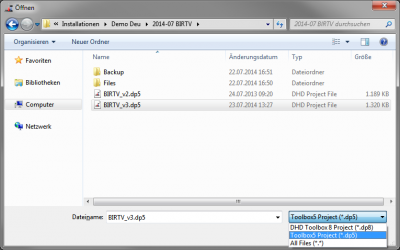
Open file window with Toolbox5 file type selection.
- In the lower right corner of this window, select
Toolbox5 project (*.dp5). - Select the *.dp5 file to import and click
Open. A progress bar window will be shown and the file will be imported and checked for consistency. - If a
Confirmationdialogue is shown (only up to TB8 ver. 8.1.14) for updating the hardware information, clickYes. ClickOKfor the following information window. A Toolbox restart might be required.
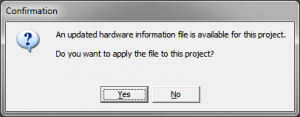
Confirmation dialogue to update hardware information file.
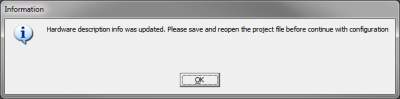
Information window about successful update of hardware information file.
- After successfully importing the configuration file, in the
Projectmenu, clickSave as...to save the project file as *.dp8. - Check the
Messagetab in theUtilitiesarea. Go through each point and check if the configuration for each element needs to be adopted. You can double-click most of the lines to jump directly to the element. (see Utilities - Messages tab)
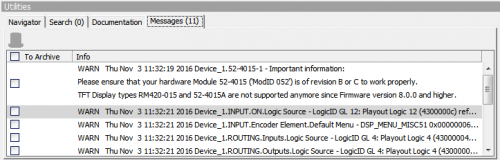
Messages tab: Note the remarks after importing the project file
- Check all elements on the TFT views for correct position and parameters, especially signal sources and
Actsettings.

TFT views - Element Configuration - Act settings
- Replace all
Button listelements with the Button List 2015 element. - Replace all
Timerelements with Label Element with timer function and buttons for control instead.
Check the font size on a physical TFT display, when using the display types (52-4015B, 52-4015C, 52-4017A, 52-4017B). The preview in TB8 is not WYSIWYG for these types. They will still show the graphics design used in firmware versions 6.x or 7.x (dark blue background, etc.).
We recommend using only the first 10 colors of the colors list (see Colors). These provide the best viewing experience for these display types.