Logic Delays
For delaying logic signals, per device up to 20 logic delays are available. To configure these logic delays, in the project tree, select <Device>/Logic/Logic Delay.
You can delay logic signals between 0.1 s and 1000 s.
The logic delays are available as logic sources in the Logic Sources window under LD <serial number>: <Name>.
Logic delays can be used for example to delay fader starts or extending pulses.
A logic delay is started if the selected logic source outputs a rising edge.
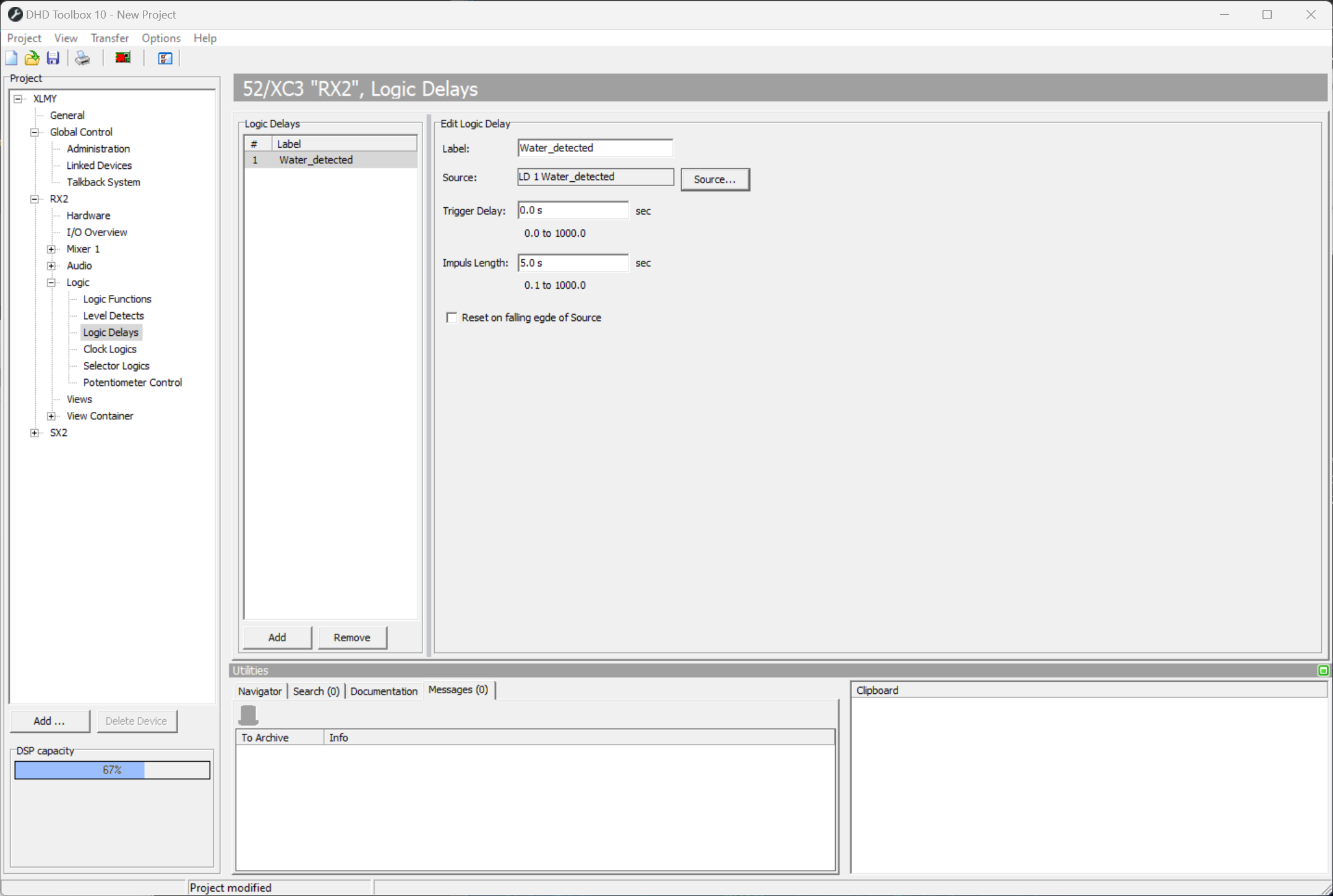
To insert a new logic delay to the Logic Delays list, click Add. To remove a selected entry from the list, click Remove. Both functions are also available by right-click in the list.
To configure a logic delay follow these steps:
- In the
Logic Delayslist, select a logic delay. - In the
Edit Logic Delayarea, type an appropriate name in theLabelbox. - To assign a logic source, click
Select. TheLogic Sourceswindow opens. - In the
Logic Sourceswindow, select the logic source that you want to delay and clickAssign. For this, Alternatively double-click on the desired logic source or drag it to theSourcebox. - In the
Trigger Delaybox, type the desired delay time. The desired time can be entered in a resolution of 0.1 s. The entry is limited from a minimum of 0.0 s to a maximum of 1000.0 s. - In the
Impulse Lengthbox, type the length of the output pulse. The desired time can be entered in a resolution of 0.1 s. The entry is limited from a minimum of 0.1 s to a maximum of 1000.0 s. - Select or deselect the
Reset on falling edge of Sourcecheck box, to define whether the logic delay is reset by a falling edge of the source or not.
After the rising edge as a start condition for the logic delay, the corresponding Logic Source is ignored during the delay time. The delay time corresponds to the sum of the values of trigger delay and impulse length. (Runtime = trigger delay + impulse length)