Fixed Processing
To create and configure fixed processings, select <Device>/Audio/Fixed Processing in the project tree.
Fixed processings are universally applicable, fixed DSP functions to route internal signals for example through limiters, compressors etc. In addition, sine generators can be configured.
You can use every audio signal available on the internal TDM bus as input for a fixed processing: inputs, delays, mixing functions (summing busses, groups, Aux busses), pre-fader signals (fader channel after input processing), clean feeds (n-1 busses), monitor functions, fixed processing, output functions, super output functions and talk outputs. The output of each fixed processing is available as an audio source in the Audio Sources window.
Fixed Processings are internally computed as stereo, but they also can be used mono.
Mixing devices contain a variety of DSP functions by default. Additional enhanced processings require an additional license code that has to be ordered separately.
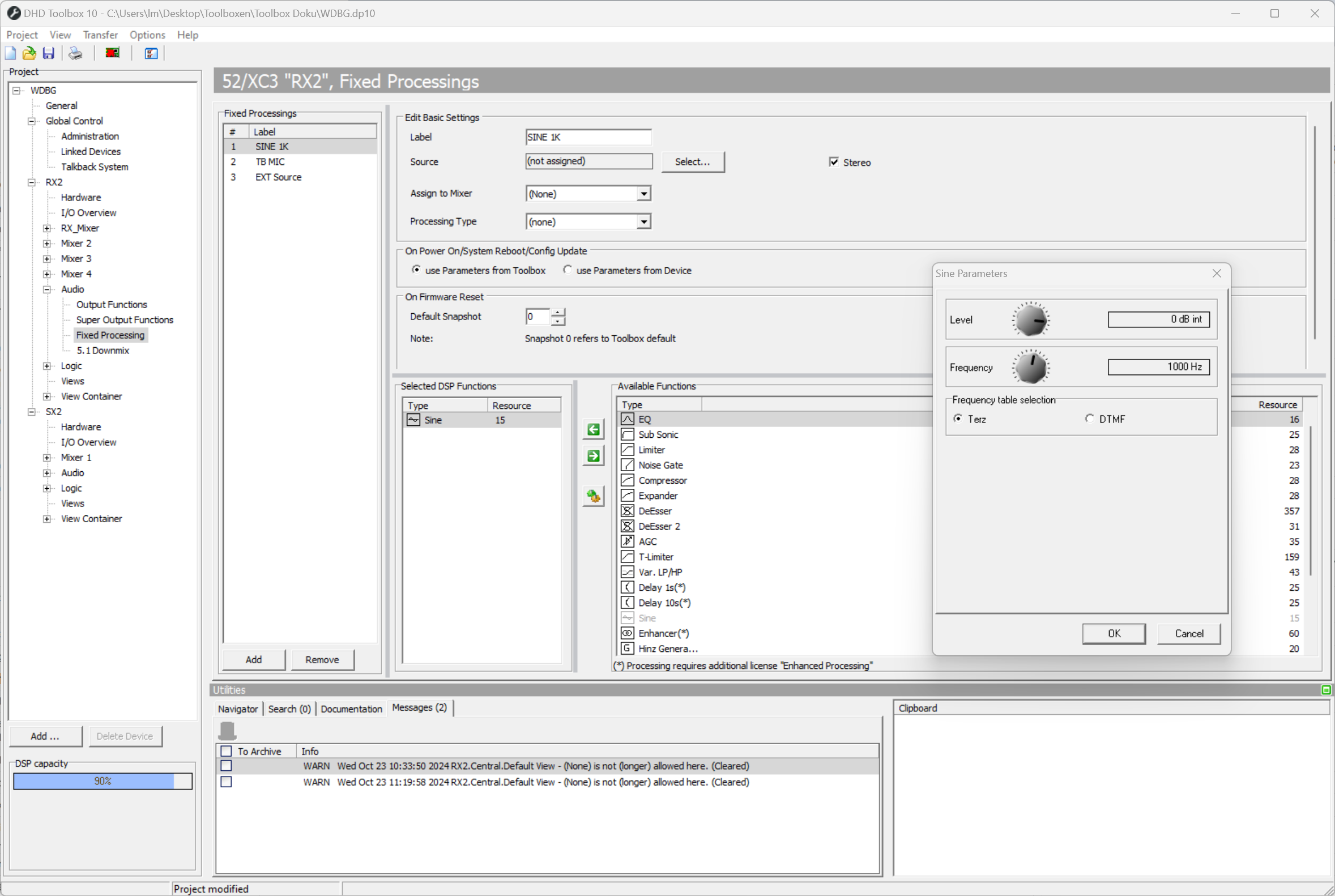
Fixed processings can not be adjusted or changed by the mixer interface! The settings can be made with the TB10 software or with the DSP control software of the DHD Operation Manager to be able to change the settings during the runtime.
from v9.0.9 & FW v9.0.5 and onward: it is possible to control all fixed processing values during operation of the console. For example, use Fixed Proc Element.
Standard DSP functions
The following DSP functions are available for fixed processing:
| Standard DSP Functions | Max. Number per Fixed Processing | Option/Parameter |
|---|---|---|
| Limiter | 1 | 1. Threshold: Threshold in the range -20 dBint to +20 dBint (in steps of 1 dB). |
| 2. Release Time: Release time in the range 3 dB/s to 20 dB/s (in steps of 1 dB/s). | ||
- The attack time can not be adjusted, it is always set to quick. | ||
| T-Limiter | 1 | - Transient Limiter with 300µs signal pre-delay, that allows to preprocess the signal. |
| 1. Threshold: Threshold in the range -20 dBint to +20 dBint (in steps of 1 dB). | ||
| 2. Release Time: Release time in the range 3 dB/s to 20 dB/s (in steps of 1 dB/s). | ||
| 3. Additional Options: If you have configured a preemphasis, you can add this information here to adapt the working mode of the T-Limiter. | ||
| Compressor | 1 | 1. Gain: Output gain in the range of 0 dB to +30 dB (in steps of 1 dB). |
| 2. Threshold.: Threshold in the range -50 dBint to +10 dBint (in steps of 1 dB). | ||
| 3. Ratio: Ratio in the range of 1.0:1 to 5.0:1 (steps of 0.1). | ||
| 4. Attack: Attack time in the range of 0.2 ms to 50 ms (8 values). | ||
| 5. Release: Release time in the range of 0.05 s to 10 s (8 values). | ||
| Expander | 1 | 1. Gain: Output gain in the range of 0 dB to +30 dB (in steps of 1 dB). |
| 2. Threshold.: Threshold in the range -50 dBint to +10 dBint (in steps of 1 dB). | ||
| 3. Ratio: Ratio in the range of 1:1.0 to 1:5.0 (steps of 0.1). | ||
| 4. Attack: Attack time in the range of 0.2 ms to 50 ms (8 values). | ||
| 5. Release: Release time in the range of 0.05 s to 10 s (8 values). | ||
| EQ | 4 | - Equalizer with up to 4 bands. |
| 1. EQ Type: EQ type can be toggled between Bell, Notch, Shelving High and Shelving Low. | ||
| 2. Gain: Gain in the range -15 dB to +15 dB (in steps of 0.25 dB). Option is ignored if EQ type Notch is selected. | ||
| 3. Frequency: Frequency in the range 22 Hz to 20000 Hz (60 fixed preset values). | ||
| 4. Quality: Quality in the range 0.1 octaves to 3.0 octaves (in steps of 0.1 octaves). Option is ignored if EQ type Shelving Low/High is selected. | ||
| - The toggling of the EQ type is not noiseless! | ||
| Sine | 1 | - Sine generator. |
| 1. Level: Level in the range -80 dBint to +15 dBint (in steps of 1 dB). | ||
2. Frequency: Depending on the Frequency table selection Frequency in the range 22 Hz to 20000 Hz (terz; 60 fixed preset values) or the rows and columns 1 to 4 of the DTMF table (8 fixed preset values). | ||
| 3. Frequency table selection: Here you can choose the frequency scale for the frequency option above. Terz (standard frequencies of a 1/3-octave) or DTMF (dual-tone multi-frequency signaling). | ||
| AGC (Automatic Gain Control) | 1 | 1. Velocity: Control speed in the range 0.3 dB/s to 6.0 dB/s (in steps of 0.1 dB/s). |
| 2. Gain: Max. signal shift in the range 0 dB to 30 dB (in steps of 1 dB). | ||
| 3. Level: Set output level in the range -20 dBint to 20 dBint (in steps of 1 dB). | ||
| 4. Threshold: Freeze threshold of the AGC in the range -40 dBint to -20 dBint (in steps of 1 dB), for lower levels, the current or last value is recorded respectively. | ||
| Sub Sonic | 2 | 1. Frequency: Frequency in the range 22 Hz to 20000 Hz (60 fixed preset values). |
| - This subsonic filter is a 3rd order high pass filter (18 dB/octave). For other filter orders, please use the function Var. LP/HP. | ||
| DeEsser | 1 | 1. Ratio: Ratio in the range 1.0:1 to 4.0:1 (in steps of 0.1). |
| 2. Threshold: Threshold in the range 1.0 to 1.8 (in steps of 0.1). | ||
| 3. Bandwidth: Bandwidth in the range 0.2 to 0.5 (in steps of 0.1). | ||
| DeEsser 2 | 1 | 1. Frequency: Frequency in the range 1000 Hz to 20000 Hz (28 fixed preset values). |
| 2. Threshold: Threshold in the range -40 dB to +10 dB (in steps of 1 dB). | ||
| Var. LP/HP | 2 | - Variable filter, high pass or low pass up to 10th order. |
| 1. Filter Type: Filter type can be toggled between HighPass and LowPass. | ||
| 2. Frequency: Frequency in the range 22 Hz to 20000 Hz (60 fixed preset values). | ||
| 3. Filter Order: Filter order can be set between 1st order (6 dB/octave) and 10th order (60 dB/octave). | ||
| - The toggling of the type and filter order is not noiseless! | ||
| Noise Gate | 1 | 1. Attenuation.: Attenuation in the range 0 dB to 30 dB (in steps of 1 dB). |
| 2. Threshold: Threshold in the range -60 dBint to -10 dBint (in steps of 1 dB). | ||
| 3. Attack: Attack time in the range of 1.0 ms to 200 ms (8 values). | ||
| 4. Release: Release time in the range of 0.01 s to 2.0 s (8 values). | ||
| DGain | 1 | 1. Gain: Gain in the range of -50dB and +50dB (in steps of 0.1dB) |
| 2. Mode: Mode can be switch between Stereo, Mono -3dB, Mono -6dB, L>L L>R and R>L R>R. | ||
| 3. Phase: activates phase reverse. | ||
| Reverb | 1 | 1. Pre Delay: Pre Delay time in the range of 0 ms to 127 ms. |
| 2. Decay: Decay amount in the range of 0.10 to 0.75. | ||
| 3. Density: Density amount in the range of 0 to 99. | ||
| 4. HiCut: HiCut amount in the range of 500Hz to 24kHz. | ||
| 5. Mix: Mix amount in the percentile range of 0 to 100. | ||
| Echo | 1 | 1. Mix: Mix amount in the percentile range of 0 to 99. |
| 2. Delay: Delay time in the range of 0ms to 255ms | ||
| 3. Feedback: Feedback amount in percentile range of 0 to 99. | ||
| 4. LoCut: LoCut amount in the range of 0Hz to 1000Hz | ||
| 5. HiCut: HiCut amount in the range of 1k Hz to 16k Hz (with optional Off Hz option) | ||
| Voice Scrambler | 1 | 1. Coloration: percentile coloration amount in the range of 10 to 100 (in steps of 10) |
| 2. Pitchdown: Additionally, Pitchdown function is selectable. |
Enhanced DSP functions
For special applications like sound processing for FM transmission you can configure special Enhanced DSP Functions. These functions are enabled using one license code per DSP frame:
| Enhanced DSP Functions | Available in | Max. Number per Fixed Processing |
|---|---|---|
| Enhancer | 1 | - Stereo Enhancer to improve the stereo sound. |
| 1. Widening: This option allows the widening of the stereo spread. | ||
| 2. 3D Effect: Creates a stereoscopic effect by adding delayed signals with a latency between 0 ms (0%) and approx. 40 ms (100%). | ||
| 3. 3D Mix: Controls the ratio of the existing signal and the signal with 3D effect. 0% means no 3D effect and at 100% only the signal with 3D effect is passing. | ||
| 4. Release: Because of the widening effect, it may happen that the correlation becomes negative. The enhancer Plug-In includes a correlation limiter, that automatically lowers the widening to avoid destructive cancellations. At 0% this limiter is always active. If you higher the release time, negative correlated signals are excepted for a while. | ||
| 90˚ Filter | 1 | - Mono creation without shifting the medium frequencies. |
| Loudness AGC | 1 | - Automatic Gain Control, triggered by loudness |
| 1. Velocity: Control speed in the range 0.1 LU/s to 6.0 LU/s (in steps of 0.1 dB/s). | ||
| 2. Gain: Max. signal shift in the range 0 dB to 30 dB (in steps of 1 dB). | ||
| 3. Level: Set output level in the range -20 LU to 20 LU (in steps of 1 LU). | ||
| 4. Threshold: Freeze threshold of the Loudness AGC in the range -60 LU to 0 LU (in steps of 1 LU), for lower levels, the current or last value is recorded respectively. | ||
| Pink Noise Generator | 1 | Generates pink noise. |
| Delay 1s | 1 | Delay time:Adjustable between 0 s and 1 s in steps of 1 ms. |
| Delay 10 s | 1 | Delay time: Adjustable between 0 s and 10 s in steps of 1 ms. |
| Hinz Generator | 1 | - Sound signal for traffic broadcast recognition (Germany only). |
| Profanity Delay 2 | 1 | See Profanity Delay |
To use the extended functions, you have to order the software license 52-8581 Enhanced DSP Fixed Processing. To be able to adjust the settings during the runtime, you also need the 52-8565 DSP Control Software, which has to be ordered additionally.
Configuring Fixed Processing
To create and configure a fixed processing, follow these steps:
- To create a new fixed processing, in the
Fixed Processingsarea, clickAdd. - To change the name for a selected fixed processing, in the
Edit Fixed Processingarea, enter name in theLabelbox. This label can be up to 16 digits long. - To select an audio source as input for the processing, click
Select. TheAudio Sourceswindow opens. - In the
Audio Sourceswindow, select the desired audio source and clickAssign. Alternatively, you can double-click on the audio source or drag it to theSourcebox.
If you use a generator function for the fixed processing, you don't need to assign an audio source. If an audio source is assigned anyway, it will be ignored!
- If you select the
Stereocheck box, the subsequent channel is selected automatically, in most cases the right channel of a stereo signal. Apart from this, the fixed processing is also shown as a stereo signal in theAudio Sourceswindow. - Select a mixer using
Assign to Mixer. Otherwise the fixed processing parameters can not be stored in mixer snapshots. - Select a
Processing Type. This refers to the Channel Snapshot Type the Fixed Processing will be saved to. It can be created under Global Control\Channel Snapshot Types. The Fixed Processing Snapshot can be assigned to Channel Snapshot numbers under Device\Channel Snapshot Types. - Decide how to proceed after Firmware Reset/Start: Use parameters from Toolbox or from Device. The parameters from Toolbox are the parameters which are set by default in the TB10 Config file. The parameters from the device are the values which are maybe changed by a DSP control software.
- Decide which Processing Snapshot will be loaded after Firmware Reset.
- To assign a DSP function to a selected fixed processing, select the desired DSP function in the Available Functions list and click
 . Alternatively, you can double-click on the desired DSP function or drag it to the
 Selected DSP Functionslist. - To change the parameter of a DSP function, in the
Selected DSP Functionsarea, double-click on it, a parameter window opens. In this window the respective parameters for each DSP function are shown.
All levels generally relate to the internal reference level of 0 dBint. For example, if a limiter at a digital output configured with a headroom of 9 dB should trigger exactly at the maximum level of 0 dBFS, you have to set them to 9 dBint.
For more information on levels see Level Adjust
You can assign up to 10 DSP functions to a single fixed processing.
For the configuration of a fixed processing, you have the following options:
- To remove a DSP function from the
Selected DSP-Functionslist, select the DSP function and click . Alternatively, you can also drag the DSP function from the
 Selected DSP Functionslist to theAvailable Functionslist. - The order of the entries in the
Selected DSP Functionslist (top to bottom) also indicates the signal path. You can change this order by dragging a DSP function to a new position in the list. - To remove a selected fixed processing from the
Fixed Processingslist, clickRemove.
When creating the fixed processings, keep in mind that they affect the DSP load of the whole system. Therefore, do not create more fixed processings than necessary to save the DSP resources for other applications.
Profanity Delay
- The Hardware needs the license 52-8581 Enhanced DSP Processing (necessary for all Cores).
Profanity delay provides a delay time between 1 and 100 seconds with parameters for the minimum pitch and the dump amount. There are two different profanity delay plugins available:
Profanity delay 2provides a delay time between 0 and 100 seconds with flexible dump time.
To configure the Profanity delay in the TB10 software, follow these steps:
- In the
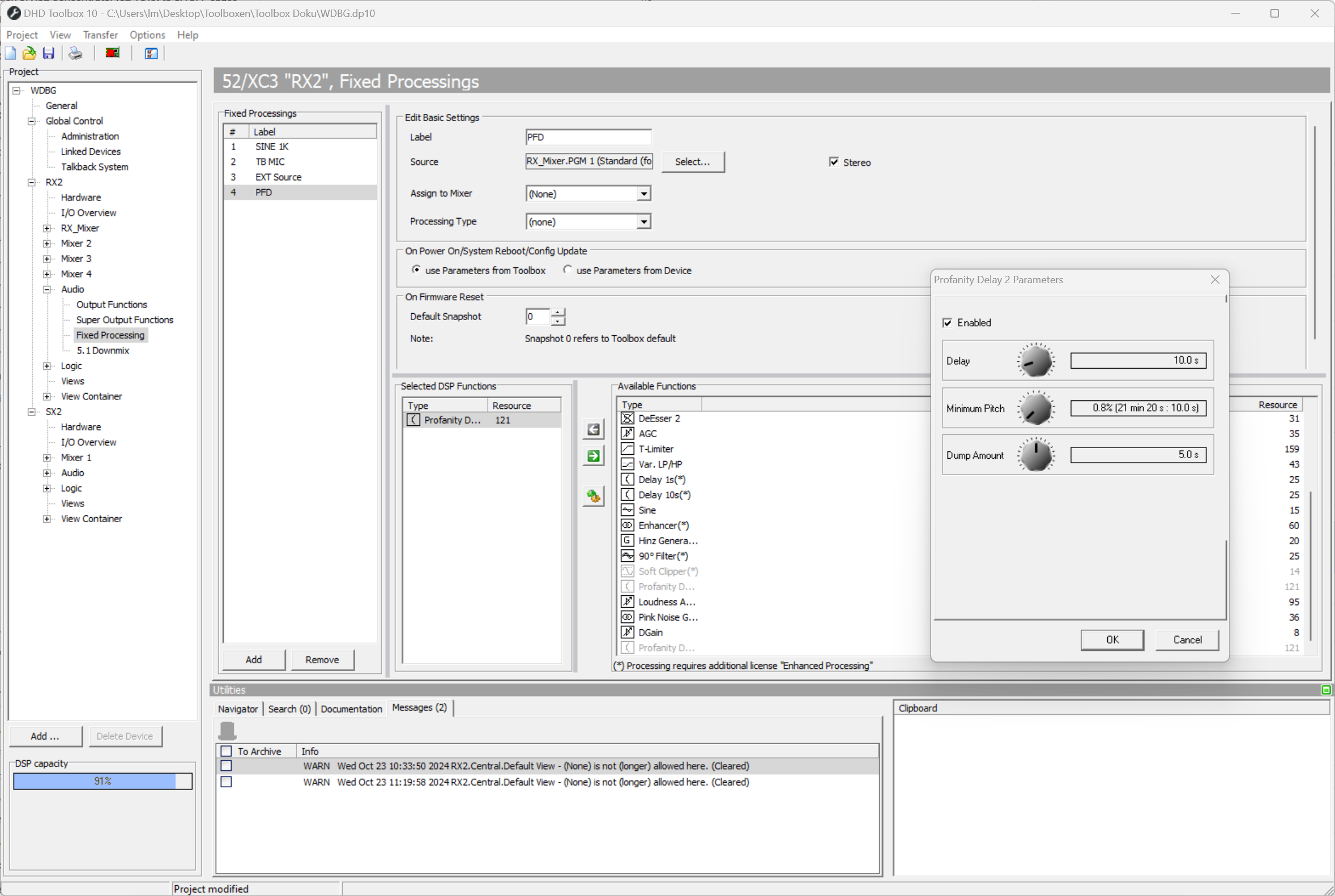
projectarea, select<Device>/Audio/Fixed Processing. Assign the designated profanity delay to aFixed Processingand assign, for examplePGM1as audio source.
- In the
Select DSP Functionsarea and double-click onProfanity Delay 2. TheProfanity Delay parameterswindow opens.
- In the
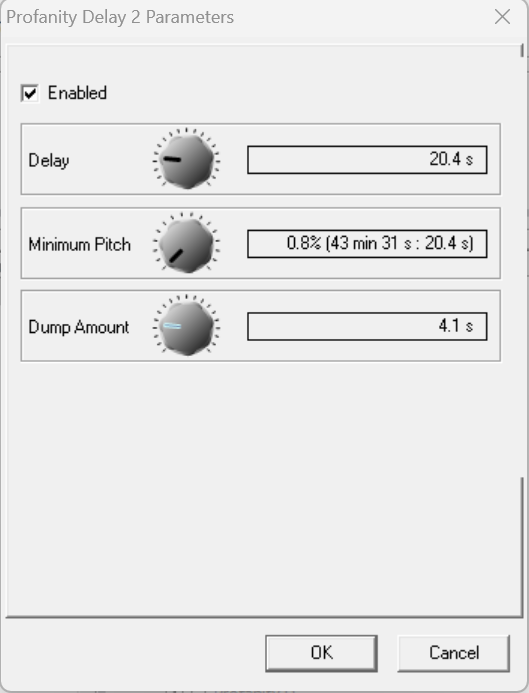
Delayarea, select a profanity delay time between 1 and 100 seconds. - In the
Minimum Pitcharea, select the pitch for fade in and fade out (lower pitch is almost inaudible, but takes longer time). Can be between 0.8% to 12.5%. - In the
Dump Amountarea, select the desired amount of delay memory time (0-10 sec.). This amount will be dumped when pressing the dump push button on the control surface.
- In the
projectarea, select<Device>/<Mixer>/Console. On theKeystab, select a push button in a central control module to assign one of the profanity delay key functions from theKey Functionswindow. You can also use buttons on the TFT/Touch display. For details on Key Functions, see Console/Profanity Delay.
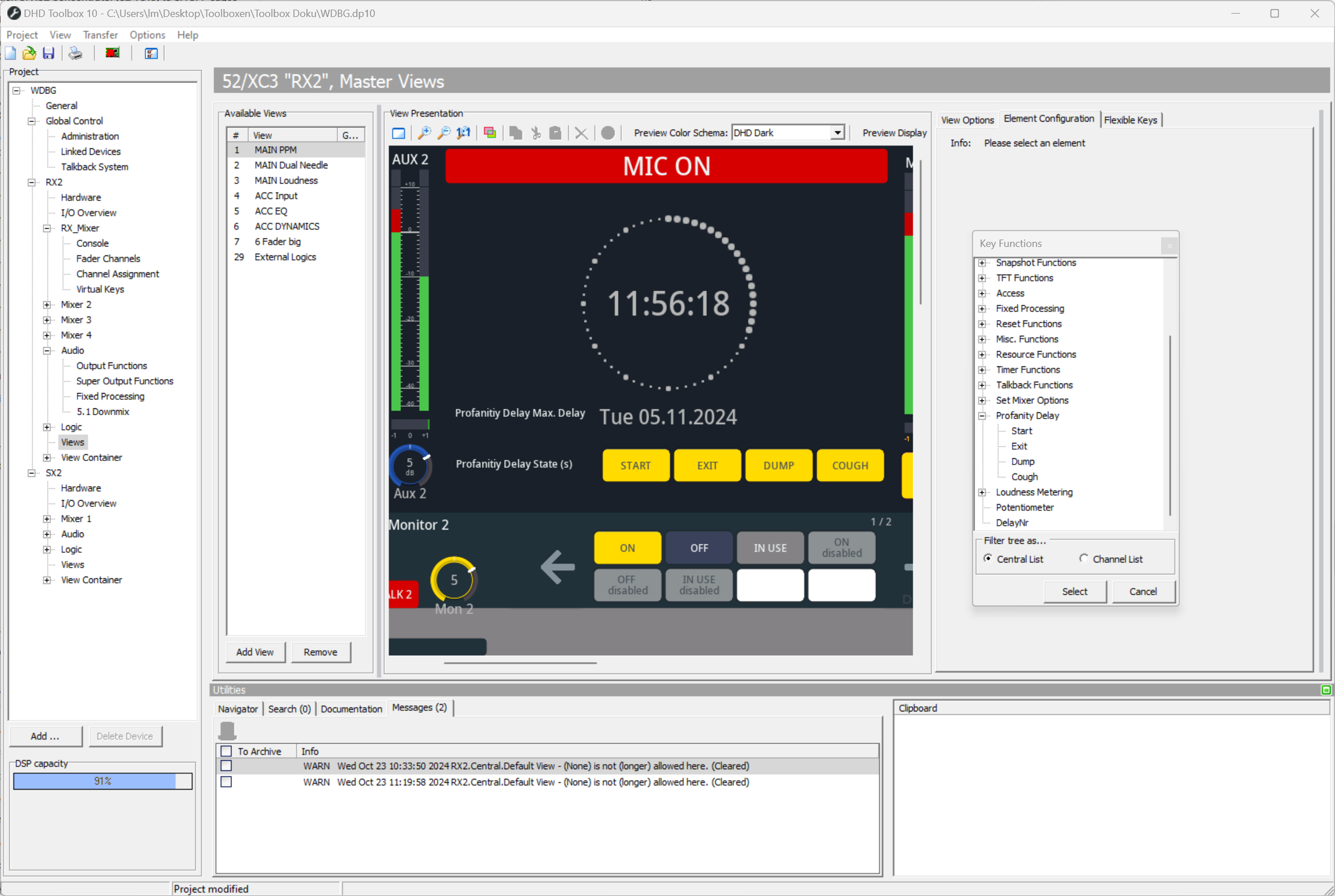
- You can now use the profanity delay Fixed Processing like normal audio on the TDM Bus. You can use it with an Output Function or route it directly to an Output.
If Profanity Delay detects silence, it fills the buffer faster.
Display Profanity Delay State on TFTs
Profanity delay key functions are also available for TFT buttons. Also, two additional label functions are available:
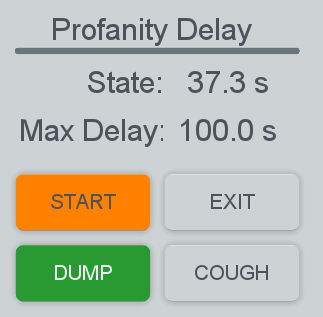
Profanity Delay State (s): Shows the buffered audio time (current fill state in seconds).Profanity Delay Max. Delay: Shows the maximum amount configured in the profanity delay settings.
For details on Label Elements, see Label Element.