Flexible Keys
Flexible Keys are key functions with functionalities depending on the currently active TFT view. Flexible Keys are physical keys controlling buttons on TFT views. When another TFT view is active, the flexible key function changes depending on what you assigned.
You can assign up to 30 flexible keys.
To use flexible keys, follow these steps:
- In
<Device>/<Mixer>/Consoleview you can assign the key functionFlexible Key Positionto any physical key. Assign a display group (To Group) and aKey Positionto your key. (See Key configuration for details on key function assignment)
When using multiple TFTs and views, you have to manage them via Display Groups. See Switching between views for more information.
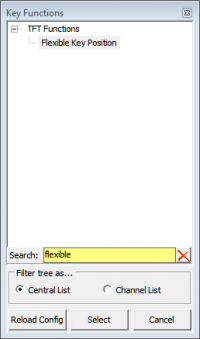
- In
<Device>/TFT Viewsselect the view where you want to assign the flexible key to a TFT button. On the right hand side, selectFlexible Keystab. In the left column you find the flexible key positions. Find your previously chosenFlexible Key Position. In theTFT Buttoncolumn select the TFT Button you want to assign to your Flexible Key. Double click to change the selected TFT Button.
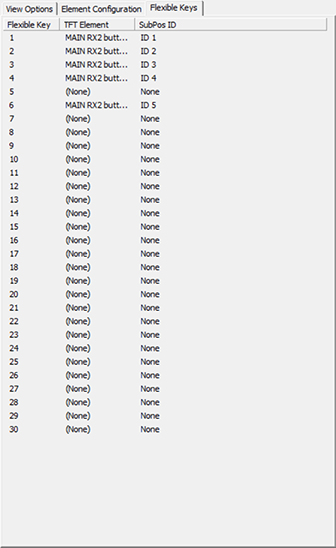
To de-assign a Flexible Key Position, select (None) in the drop-down menu.
Repeat step 2 for every TFT view where you want to use your Flexible Key.
Flexible Keys and button colors Whenever you use flexible keys on hardware keys, the color of the assigned TFT Key will be forwarded to the hardware key if the key supports it. If the key color is not supported, on color will always be yellow, off color will be not illuminated.
Supported hardware:
- RX2: all RGB color values
- SX2: all RGB color values Supported with reservation:
Those color codes can not be changed. See Colors for more information.
Example
You can use flexible keys in combination with 52/TX or RX2 central module. So you can use the hardware buttons below the screen for multiple functions. You could build a talkback view and a monitoring view, both controlled by the same hardware keys
You can use flexible keys in a fader view container in combination with Talk CF and Access on a RX2. If the affected fader view is not visible, the button does not have this function. You could also switch the function of the upper button between Talk CF and Automix On.
Flexible Keys with View Container
View container (fader view container and central view container) can also have flexible keys. Flexible keys defined in containers will not be available for direct assignment in the hardware key function properties.
To use flexible fader keys follow the steps described above.
To use flexible central keys in containers follow these additional steps:
- In
<Device>/<Mixer>/Consoleview you can assign the key functionFlexible Key Positionto any physical key. Assign a display group (To Group) and aKey Positionto your key. (See Key configuration for details on key function assignment)
When using multiple TFTs and views, you have to manage them via Display Groups. See Switching between views for more information.
- In
<Device>/View Container/<View Container>select the central view container where you want to assign a flexible key. Select the correct container view. - On the right hand side, select
Flexible Keystab. In the left column you find the flexible key positions. - In the
TFT Elementcolumn select the TFT Button you want to assign to your Flexible Key. Double click to change. - In
<Device>/Viewsselect the view containing the previously set container where you want to assign the flexible key to a TFT button. - On the right hand side, select
Flexible Keystab. In the left column you find the flexible key positions. InTFT Elementcolumn, select the previously setup container. - In
SubPos IDcolumn, set theFlexible Keyposition asIDof the flexible key as set in your Container.