Colors
On the Colors tab, you can manage your color schemes and used colors. Colors and color schemes are useful for TFT design.
You can select colors for every TFT element and change them when selecting another scheme or centrally edit one color here.
By default, Toolbox includes two color schemes: DHD Bright and DHD Dark
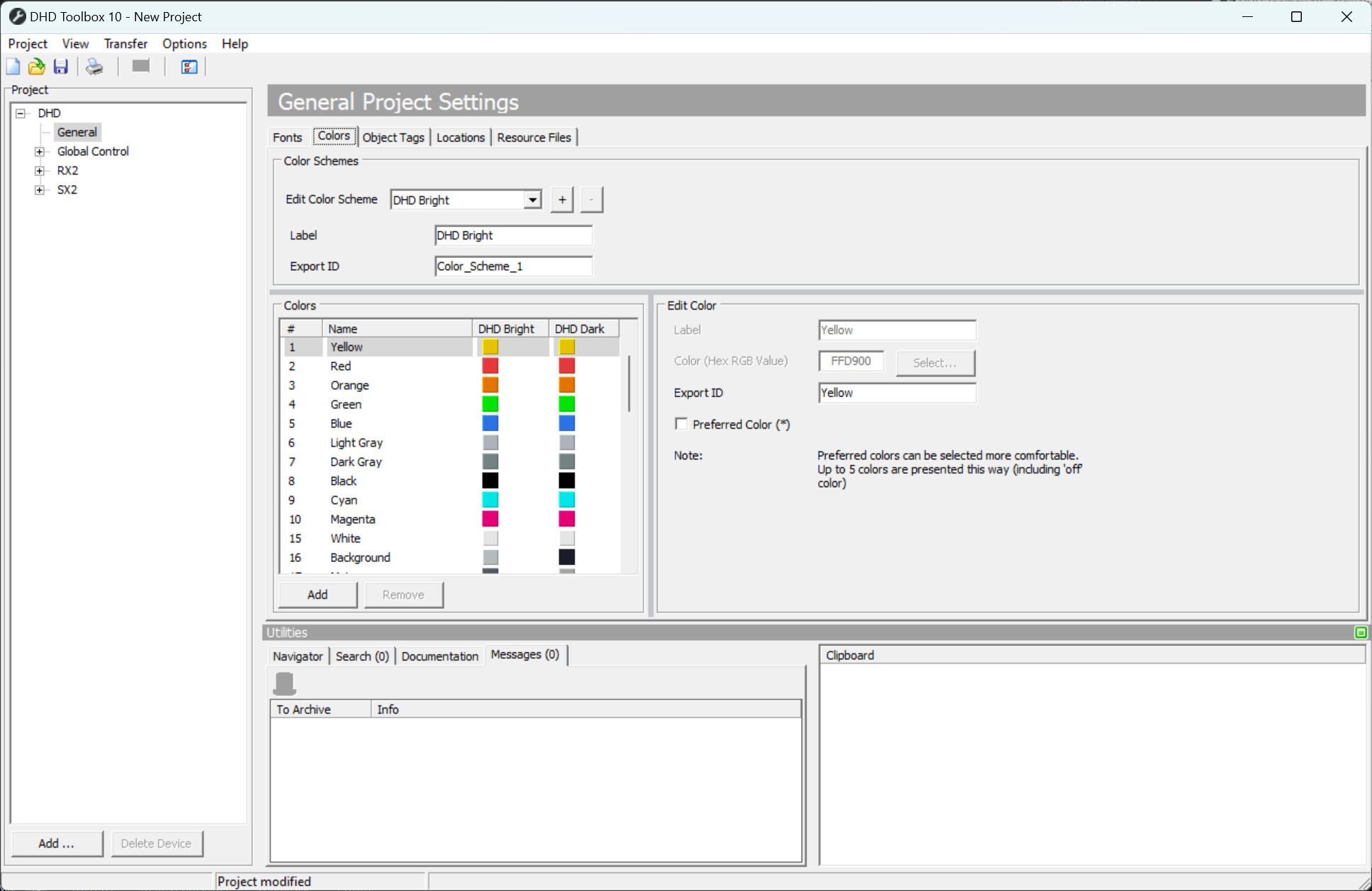
To add a color, click Add. On the bottom of the list, a new color entry named (Color <X>) is created. Select it, to set the Color settings in the Edit Color area.
Enter a distinctive name for the color in the Label box. It will later be shown on every selection menu for colors.
Select the color you want. There are two ways to do so:
- Visual color selection. Click
Select. The a color selector will be displayed. Here you cam select basic colors, create user defined colors or select in the color graphic on the right. For creation of user defined colors, select the Entry where to save it and the color you want and clickAdd Color. If you made your choice, clickOK. The color will now be selected in the HEX value field. - Direct HEX code selection. If you have a predefined color, you can directly add the HEX value. Simply click in the field that has the default value
000000and enter your HEX color code. Entering # before the HEX code is not necessary and will be ignored. For more information on HEX colors, see Wikipedia: Web Colors.
The first 32 colors of every scheme are predefined. They can not be deleted and Label can not be changed. On (Default) theme, the Color can not be changed.
The first 11 colors are reserved for system functions and have to exist in every scheme and can not be edited.
This restrictions do not affect Preferred Color (*) setting.
Preferred Colors
You can select up to 4 colors as preferred color. When selected, they will be shown on color selection menus directly and on top of the dropdown menu. Also, off is always a preferred color. If you select more than 4 preferred colors, Toolbox will choose the first 4 colors of the list (according to # order).

Channel Color
This will be the default value, if no channel color is available. You can configure a channel color for each Fader Channel here.
Export ID
To export and import views, you need to define an Export ID per color. For default colors, default IDs are defined. When creating new colors, a value based on project and color ID will be generated.
When importing views and color schemes, Toolbox will search colors for matching export IDs. If export IDs of the target config and imported color match, there will be no new color entry created. If no matching export ID is found, a new color entry will be generated. This could result in exceeding the maximum of 62 Colors and possibly break imported views, so make sure to identify matching colors and match their export IDs before exporting / importing views.
See also Project Menus - Add TFT config from file.