Selector Logics
Selector logics become active, if a defined source of a selector is chosen. To configure selector logics, in the project tree, select <Device>/Logic/Selector Logics.
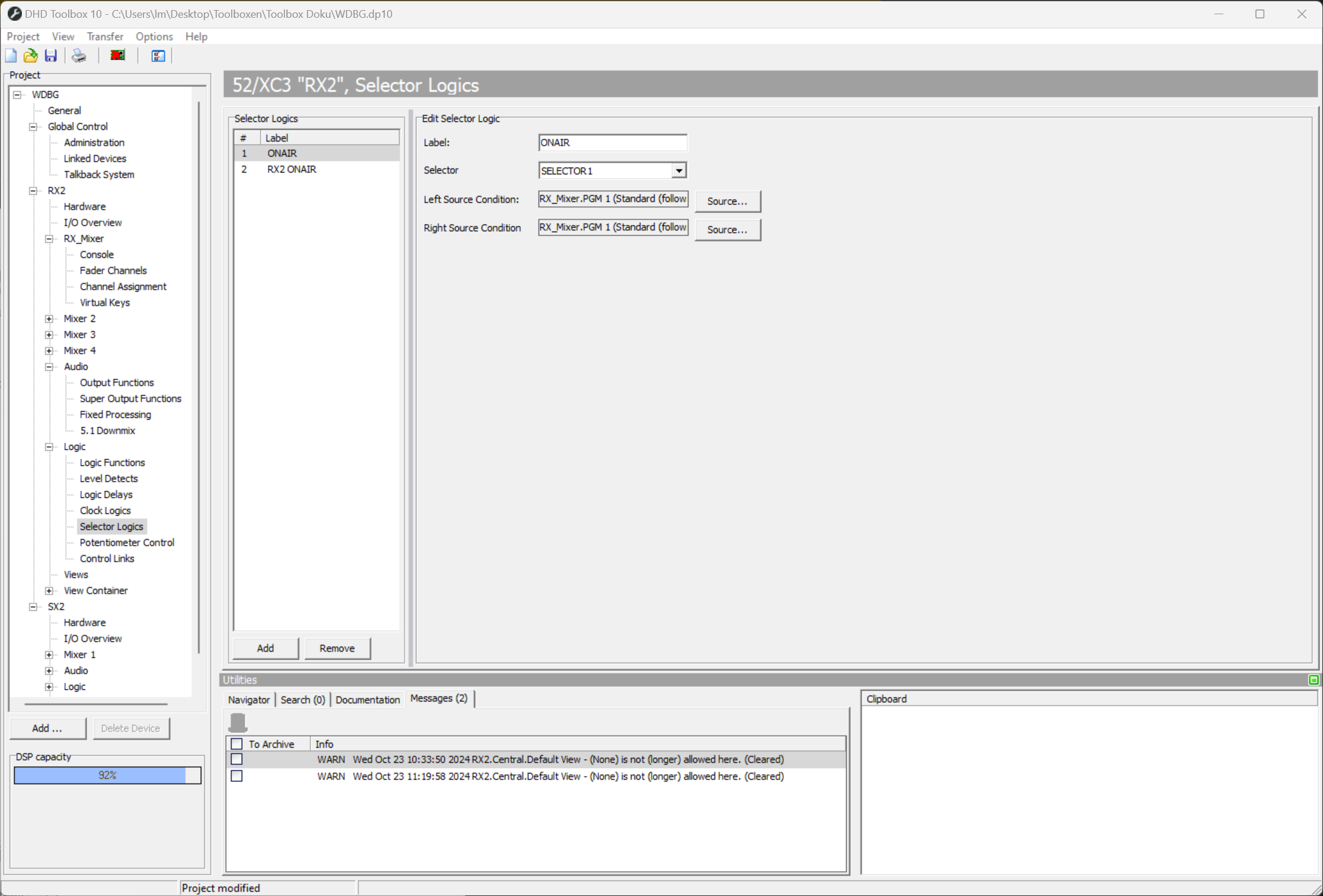
In the Selector Logics list all available selector logics are shown.
To create a selector logic, you need to create a selector. (See Selectors)
Click Add to create a new selector logic. Click Remove to delete a selected selector logic. Both options are also available by right-clicking to the list.
In the Edit Selector Logic area you can configure a selected entry:
- In the
Labelbox, enter an appropriate name for the selector logic. This label may be up to 16 digits long. - In the
Selectorlist, choose the selector you want to assign. - Click Select, next to the
Left Source Conditionbox. TheAudio Sourceswindow opens. - In the
Audio Sourceswindow, select the audio source which should activate the selector logic. - Click
Assignto assign the audio source to theLeft Source Condition. Alternatively, you can double-click on the desired audio source or drag it to theLeft Source Conditionbox. - Repeat step 3 to 5 for the right audio source
Right Source Condition.
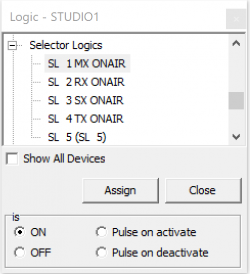
The created Selector Logics are available as a logic source in the Logic Sources window.