Snapshot Options
You can save the settings of Input Gain, Input Processing, Input Routing, Summation, Aux and Clean Feed of all fader channels of the mixer as a mixer snapshot and load them again later on. The same is possible for the separate channels, thus saving/loading all Input Gain and Input Processing settings for a channel selected via ACCESS (see also Snapshot Functions).
In the project tree, select <Device>/<Mixer>. Select the Snapshot Options tab . Here you can select which functions and contents are saved in a snapshot.
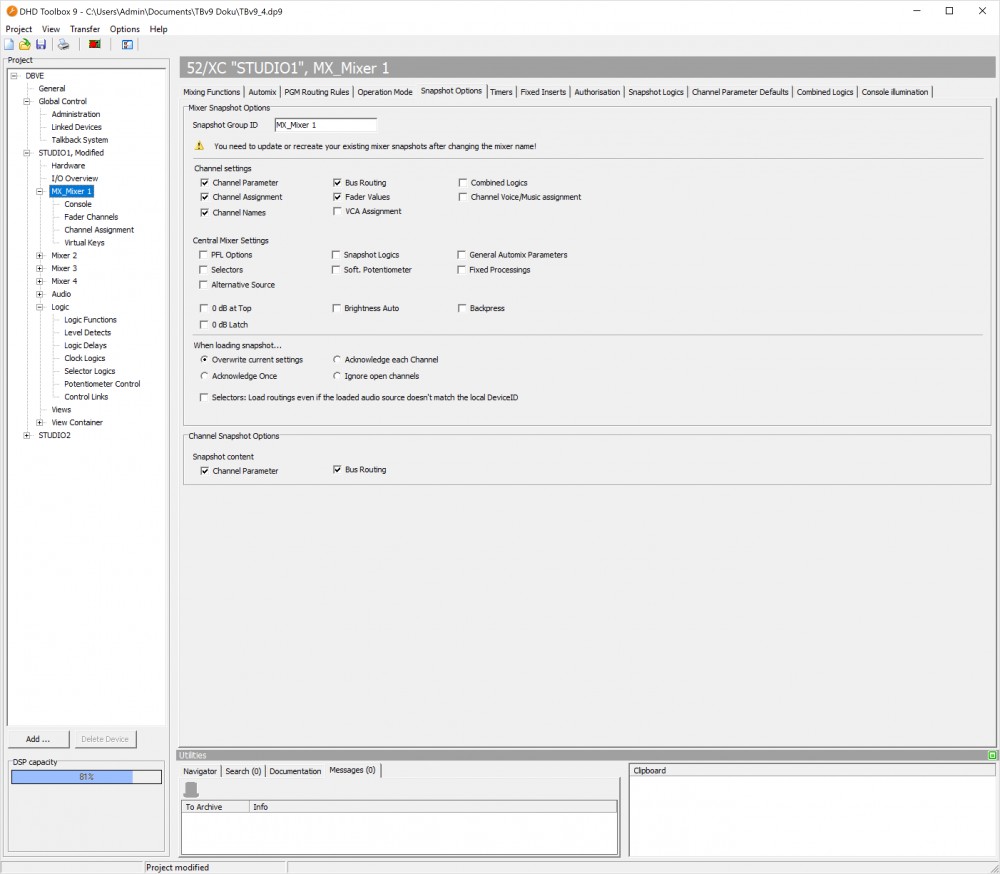
Mixer Snapshot Options
Snapshot Group ID
The Snapshot transfer always requires DHDOSOM with snapshot manager software & license. See Operation Manager Documentation for further details.
Only necessary for Mixer Snapshots.
Virtual Mixers that should interchange mixer snapshots should have the same Snapshot Group ID.
If you want to transfer mixer snapshots from your server PC to a DHD device, it is essential that the Snapshot Group IDs are identical. Please read the section Mixer Snapshots to find out how to change the Snapshot Group ID of snapshots stored on the server PC.
In the Snapshot Group ID text box you can find the current ID of the virtual mixer. It is possible to change this ID, but then it is necessary to transfer the changed device configuration to the hardware afterwards.
You can use the same Snapshot Group ID on virtual mixers with the same Hardware Setup, e.g. use the ID Studio for Mixers Studio 1 and Studio 2. This makes it possible to transfer mixer snapshots between them.
You need to update or recreate your existing mixer snapshots after changing Snapshot Group ID.
By default, Mixer Name and Snapshot Group ID are coupled. When Changing Snapshot Group ID, the two values are uncoupled.
Channel settings
| Option | Description |
|---|---|
| Channel Parameter | Save the parameters of all channels in the mixer snapshots. |
| Channel Assignment | Save the assignments of the defined fader channels to the physical faders in mixer snapshots. |
| Channel Names | If you have changed the channel names and you want to save and load these new names, you have to activate this function. Otherwise, the default names, which are defined in the Toolbox, will be loaded. |
| Bus Routing | Save the settings of the bus routings for all channels in mixer snapshots. |
| Fader Values | Save the fader positions of all channels in mixer snapshots. |
| VCA Assignment | Save the VCA assignment of all channels in mixer snapshots. |
| Combined Logics | Save the assignment of a channel to a combined logic in mixer snapshots. Does not save the status of a combined logic. |
| Selectors | Save the source selections in mixer snapshots. Note: You have to enable each selector that should be affected by this saving option. (See Monitor Functions) |
| Channel Voice/Music assignment | Save the assignment of channels to voice bus or music bus in mixer snapshots. |
Central Mixer settings
| PFL Options | Include the PFL selections for all channels that is selected when saving when saving a Mixer Snapshot. |
| Selectors | Save the source selections in mixer snapshots. Note: You have to enable each selector that should be affected by this saving option. (See Monitor Functions) |
| Alternative Source | Saves for which fader Alternative Source is enabled. (See Alternative Source) |
| Snapshot Logics | Save the status of the snapshot logics in mixer snapshots. |
| Software Potentiometer | Save the software potentiometer values in mixer snapshots. Note: You have to enable each software potentiometer that should be affected by this saving option. (See Potentiometers - Assigning Potentiometers) |
| General Automix Parameters | Saves values of automix parameters. |
| Fixed Processing | Include the settings of the fixed processing when saving a mixer snapshot. |
| 0dB at Top | If enabled, saves if 0dB at Top is enabled. |
| 0dB Latch | If enabled, saves if 0dB Latch is enabled. |
| Brightness Auto | If enabled, saves automatically adjusted brightness of the console. Only for RX2 and SX2 consoles. More about Brightness Sensor |
When loading snapshots...
| Option | Description |
|---|---|
| Overwrite current settings | - Overwrites all settings of all channels immediately after loading a mixer snapshot. |
| Acknowledge each Channel | - Overwrites all settings of all channels with closed faders immediately after loading a mixer snapshot. |
| - The ACCESS keys of all channels with opened faders start flashing. Press the ACCESS key to confirm the loading process for each single channel. | |
| Acknowledge Once | - Overwrites all settings of all channels with closed faders immediately after loading a mixer snapshot. |
| - The ACCESS keys of all channels with opened faders start flashing. Press one of these ACCESS keys to confirm and all settings of all channels with opened faders will get overwritten. | |
| Ignore open channels | - Overwrites all settings of all channels with closed faders immediately after loading a mixer snapshot. |
| Selectors: Load routings even if the loaded audio source doesn't match local DeviceID | - Select if you want to load routings although loaded audio source doesn't match local DeviceID. |
Channel Snapshot Options
Snapshot content
| Option | Description |
|---|---|
| Channel Parameter | Include the parameters of a channel when saving a channel snapshot. |
| Bus Routing | Include the settings of the bus routing for a channel when saving a channel snapshot. |