Operation Mode
Select the Operation Mode tab to adjust general settings for the currently selected virtual mixer.
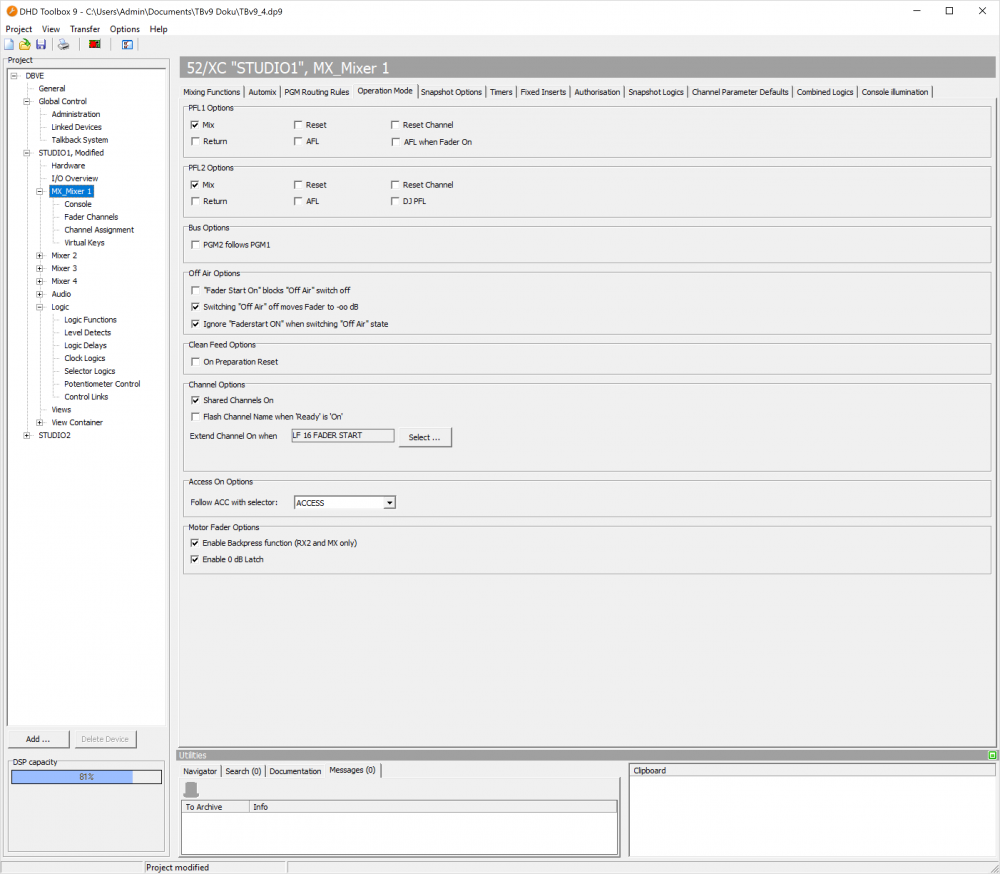
PFL1 Options
| Option | Description |
|---|---|
| Mix | - Enables, that several channels can be simultaneously routed on PFL1. If it is not checked, activating PFL on one channel will deactivate an active PFL on another channel. |
| Reset | - If the fader of any channel in PFL mode gets opened (it does not matter if the opened channel belongs to PFL bus 1 or 2), all currently active PFL1 routings are reset. |
| Reset Channel | - If a channel is routed on PFL1 and you open its fader, the PFL1 routing of that channel is reset. |
| Return | - If a channel is routed on PFL1 and you open its fader, the PFL1 routing of that channel is reset. If you close the fader, the PFL routing is reactivated. |
| AFL | - Enable the AFL monitoring mode for PFL2. |
| AFL when Fader On | - Toggles automatically the monitoring mode from PFL to AFL, if the fader of a channel is opened (Faderstart ON). |
PFL2 Options
| Option | Description |
|---|---|
| Mix | - Enables, that several channels can be simultaneously routed on PFL1. If it is not checked, activating PFL on one channel will deactivate an active PFL on another channel. |
| Reset | - If the fader of any channel in PFL mode gets opened (it does not matter if the opened channel belongs to PFL bus 1 or 2), all currently active PFL1 routings are reset. |
| Reset Channel | - If a channel is routed on PFL1 and you open its fader, the PFL1 routing of that channel is reset. |
| Return | - If a channel is routed on PFL1 and you open its fader, the PFL1 routing of that channel is reset. If you close the fader, the PFL routing is reactivated. |
| AFL | - Enable the AFL monitoring mode for PFL2. |
| DJ PFL | - Allows predefined fader position via PFL2 for next Channel Start (alternating to 0) |
| - Requires defined PFL2-Bus | |
| - Resets predefined fader position after Fader Start |
Bus Options
| Option | Description |
|---|---|
| On Preparation Reset | - If the channel is in preparation mode, the preparation mode is automatically disabled when you open the fader. Selecting the check box prevents the channel from switching back to preparation mode after closing the fader. |
OFF AIR Options
| Option | Description |
|---|---|
| “Fader Start On” blocks “Off Air” switch off | - Channels can only be routed from Off Air to On Air mode if the faders are closed. |
| Switching “OffAir” off moves Fader to -∞ dB | - If “OffAir” is activated on the channel, the Fader moves to -∞ dB |
| Ignore “Fader Start ON” when switching “Off Air” state | - Ignores “OnAir”-protection of all channels and activates off air if pressed. |
Clean Feed Options
| Option | Description |
|---|---|
| On Preparation Reset | - If the channel is in preparation mode, the preparation mode is automatically disabled when you open the fader. Selecting the check box prevents the channel from switching back to preparation mode after closing the fader. |
Channel Options
| Option | Description |
|---|---|
| Shared Channels On | - Allows the assignment of a fader channel to multiple physical faders at the console within the same Virtual Mixer. Accessible via Button List with function input select directly at the console. |
Note: Requires License 52-8588 Shared Channels, must be enabled at <device> page, Options tab. | |
| Note: The use of Shared Channels requires motorized faders. | |
| Note: There is a hierarchy when controlling the same fader channel from different physical faders: The first fader which is touched is in control of the fader value, all other touched and moved faders will be ignored. When the first fader will be released, the second touched fader is in control. | |
Warning: All configuration on the surface and TFT regarding channels that may be shared has to be done channel based, not fader based. | |
Warning: Any external control (via the DHD External Control Protocol) like playout systems, need to operate on channel based commands. | |
| Flash Channel Name when 'Ready' is 'On' | - When the Ready Signalization Logic assigned to a fader channel becomes true, all appearances of the channel name (OLED Displays, Label Elements on TFT) will start flashing slowly. |
| - Useful for e.g., playout systems or phone channels. | |
| Extend Channel On when | - With this function a logic can be used to switch between Channel Start ON/OFF or Channel ON/OFF functionality. This function corresponds with the key functions Channel ON (Ext), Channel OFF (Ext) and Channel ON/OFF (Ext). |
- Click Select, the Logic window opens. Select a logic from the list and click Assign to assign a logic source that switches between the Channel ON/OFF functionality and Channel Start ON/OFF. | |
| See Key Functions - Channel Functions for more information about the different Channel ON/OFF functions | |
| Channel On Sets Fader to 0 dB | Using Channel ON, Channel OFF (Ext) and Channel ON/OFF (Ext) or external protocol sets the Fader to 0dB. This can also be a key function, see Console - Set Mixer Options |
Access On Options
| Option | Description |
|---|---|
| Follow ACC with selector | - In this list, all available selectors are shown. |
- Chose a selector in this list, to which the PFL signal is routed when the Access key is pressed in a fader channel. |
Motor Fader Options
| Option | Description |
|---|---|
| Enable Backpress function | - This option activates a new key function on motor faders. Backpress key function can be configured on Console page by selecting a fader knob with a click. |
| Warning: Requires console with motor faders. Works with 52/MX surfaces with internal 52-4060 controllers. | |
| Enable 0 dB Latch | - This option enables latch function on 0dB for motorfader consoles. User will feel a little latch when reaching 0 dB. |
| Warning: Requires console with motor faders. Works with 52/MX surfaces with internal 52-4060 controllers. | |
| Warning: Does not work with inverted fader scale. |