Switchable Inserts
On the Switchable Inserts tab, You can define up to 16 switchable inserts that can be assigned to certain faders as needed.
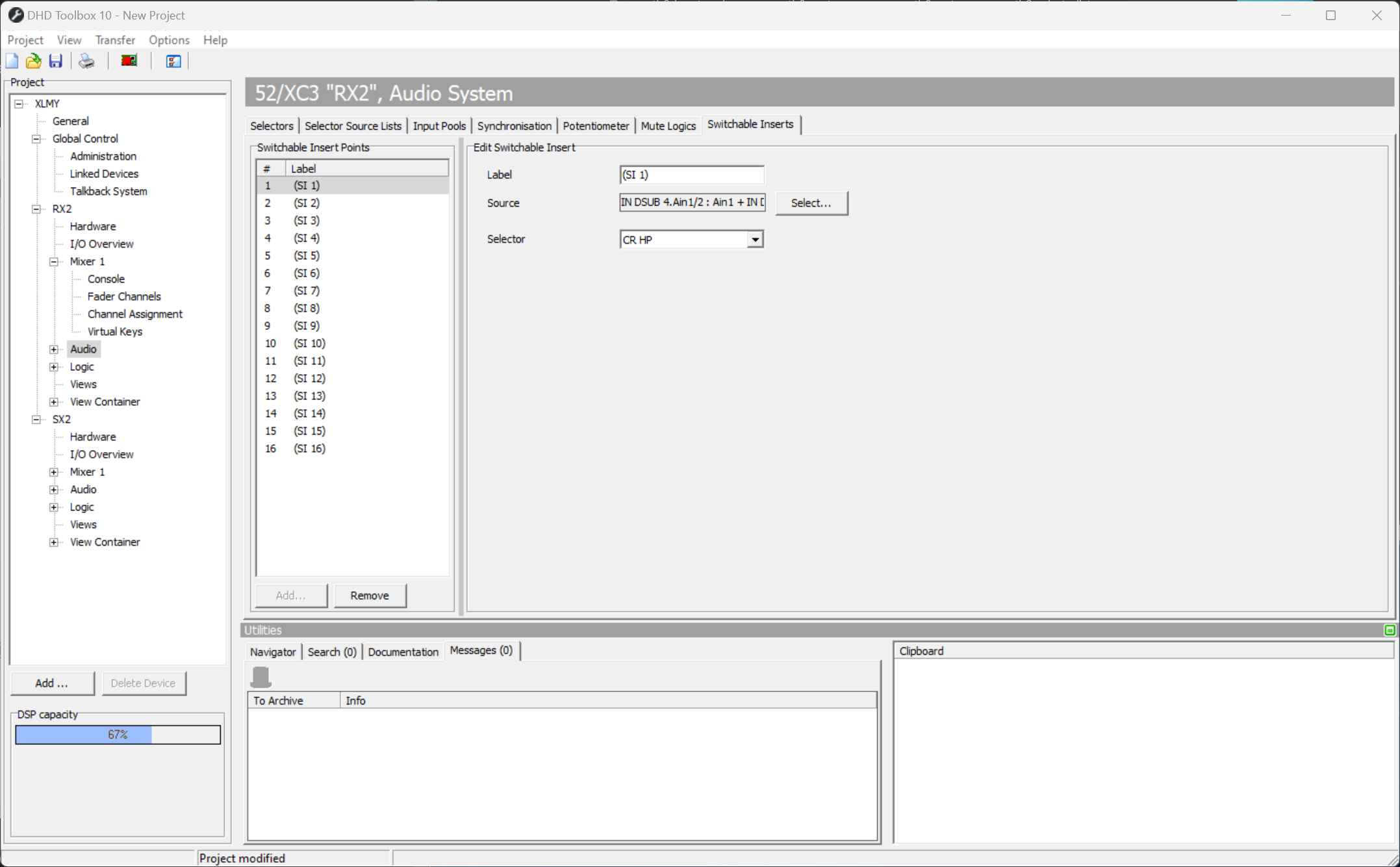
To do this, in the console, you have to define the appropriate keys. Then, by pressing a key, you can enable/disable one of the 16 available, switchable inserts for a certain fader.
Stereo Insert
To configure an external signal processing for a stereo signal as a switchable insert, follow these steps:
- Connect the input of the external device with an output of the DHD Core. Connect the output of the device with an input of the Core. Remember, which inputs and outputs of the mixing device have been used.
- In the project tree, select "I/O Overview
- Find the input that is connected to the output of the external device and enter a distinctive name for the input signal in the Label box, for example FromExt. The signal is then listed with this name in the Audio Sources window in the Inputs section.
- Find the output that is connected to the input of the external device and enter a distinctive name for the output signal in the Label box, for example ToExt.
- In the project tree, select Audio/Selectors.
- Add a selector for your insert and give it a name. The selector will then be used to route your signal from the Fader to the phyiscal output. No other options except a usefull name need to be chosen.
- Select the Switchable Insert Tab, add a Switchable insert and give it a name.
- Open the Audio Tree by pressing the "Select button", find your external device that shall be inserted and select it as Source for the insert.
- In the Selector Drop Down Menu, choose the Selector you previously added for that switchable insert.
- Navigate to I/O Overview again and route the Selector to the physical output to which the external device is connected to. Now the routing part is finished.
- Add the Key Function "Switchable Insert" to either a hardware button or to a TFT button.
- In the option of the Switchable Insert button you can choose which insert number shall be inserted, when the button is active.
- If the button is pressed, the Pre Fader Signal of the Fader will be routed to the selector and to the output. The Pre Fader Signal will be replaced by the configured source of the Switchable insert.
Now you can use the switchable inserts as follows: In the desired fader strip, press the Access key and then the key for the Switchable Insert. This way, the insert is enabled for this fader. Repeat this procedure to disable the switchable insert.
You can also define an insert key in a fader strip. By doing so, you can switch it the insert on and off by pressing the this key.
Mono Insert
To configure an external signal processing for a mono signal as a switchable insert, follow these steps. In a DHD Mixer all DSP faders and their respective pre fader signals are processed as 2-channel signals. That makes it possible to put mono or stereo sources on every fader during use. To create a mono insert it is necessary to make a mono signal out of the pre fader signal of the fader, which will be routed to the external mono device. In the return path we have to duplicate the mono return to have a 2-channel signal that can be used as insert in the 2-channel fader.
- Connect the input of the external device to an output of the Core. Connect the output of the external device with an input of the Core. Remember, which inputs and outputs have been used.
- In the project tree, select "I/O Overview
- Find the input that is connected to the output of the external device and enter a distinctive name for the input signal in the Label box, for example FromExt. The signal is then listed with this name in the Audio Sources window in the Inputs section.
- Find the output that is connected to the input of the external device and enter a distinctive name for the output signal in the Label box, for example ToExt.
- In- the project tree, select Audio/Selectors.
- Add a Selector for your insert and give it a name. The selector will then be used to route your signal from the Fader to the physical output. No other options except a usefull name need to be chosen.
- Navigate to Output Functions, add a new Output Function and give it a name.
- Now find your Selector in the Audio Sources Tree and add the left side of the selector to input 1 and the right side to input 2 of your output function. This creates a mono sum of the selectors audio signal.
- Reduce the level of both output function inputs to -6dB to ensure that the level does not increase by the summing.
- Add two more output functions to feed the return signal through. Add the input signal from your external device to source 1 of both output functions.
- Select the Switchable Insert Tab, add a Switchable insert and give it a name.
- Open the Audio Tree by pressing the "Select button", find your Output Functions, select the first of the two Return Output Functions you just created in step 10 and select them as Source for the insert.
- In the Selector Drop Down Menu, choose the Selector you previously added for that switchable insert.
- Navigate to I/O Overview again and route the Output Function you created in step 7 to the physical output to which the external device is connected to. Now the routing part is finished.
- Add the Key Function "Switchable Insert" to either a hardware button or to a TFT button.
- In the option of the Switchable Insert button you can choose which insert number shall be inserted, when the button is active.
- If the button is pressed, the Pre Fader Signal of the Fader will be routed to the selector and to the output. The Pre Fader Signal will be replaced by the configured source of the Switchable insert.
Now you can use the switchable inserts as follows: In the desired fader strip, press the Access key and then the key for the Switchable Insert. This way, the insert is enabled for this fader. Repeat this procedure to disable the switchable insert.
You can also define an insert key in a fader strip. By doing so, you can switch it the insert on and off by pressing the this key.
You have to use this construction with output functions, because pre-fader signals always have to be stereo.