Selector Source Lists
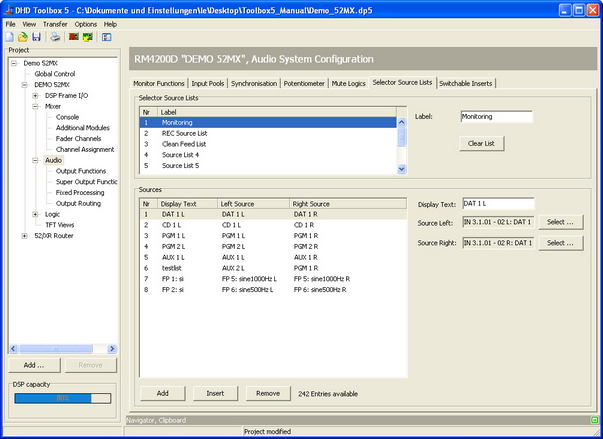
On this tab, you can configure signal lists (Selector Source Lists) that are required for configuring the selectors.
Up to 10 different signal lists with a total of 250 entries are available. For example, up to 10 lists with 25 entries each or a list of 250 entries can be configured.
To configure a signal list, follow these steps:
- In the
Selector Source Listsarea, select a source list from the list. - If necessary, assign a distinctive name to it by entering the name in the
Labelbox. - In the
Sourcesarea, click Add to add an audio sources entry to the list. Each row represents a stereo signal. - In the
Display Textbox, enter a name for the list entry. This name may be up to 8 characters long. - To assign an audio source for the left channel to the list entry, click
Selectbeside theSource Leftbox. TheAudio Sourceswindow opens. Every signal available on the TDM bus can be used as a source. - In the
Audio sourceswindow, select an audio source and clickAssign. Alternatively, you can double-click on the audio source or drag it from theAudio Sourceswindow to theSource leftbox. - To assign an audio source for the right channel to the list entry, click
Selectbeside theSource Rightbox. TheAudio Sourceswindow opens. Every signal available on the TDM bus can be used as a source. - In the
Audio sourceswindow, select an audio source and clickAssign. Alternatively, you can double-click on the audio source or drag it from theAudio Sourceswindow to theSource rightbox.
To add a source above a selected source, click Insert. To delete a source, select the desired source in the list and click Remove.
Please note that the function Output Select using the rotary encoders in the fader strips of an RM4200D can only show up to 4 digits. In the display of the control modules of an RM4200D, 8 digits can be shown if Output Select is operated by Access key. For modules of the Series 52, there are no limitations for the display of this function, because they can show up to 32 digits.
If you want to change the sequence of the entries in the list, you can do this by drag & drop. The button Clear List, in the Selector Source Lists area, completely deletes the contents of the selected list!
The last selector positions are kept after rebooting the device. After a firmware reset, they are set to entry Nr 1 in the list.